
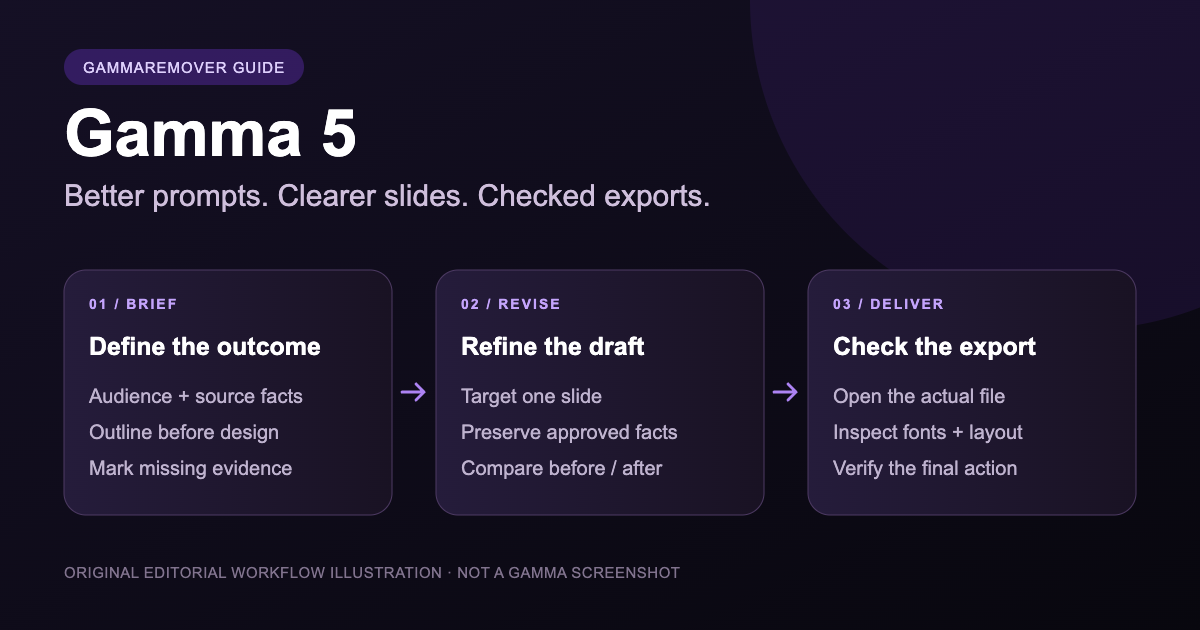
Gamma 5 changes the starting point of a presentation: you can develop the brief with an agent, refine the draft in conversation, and take over individual elements on a freeform canvas. Gamma announced the release on October 6, 2026, with access across plans. This is a guide to the documented workflow, with original prompts and a practical export review—not a benchmark claiming every generated deck works perfectly. Source: Gamma 5 announcement.
If you already have a useful outline, you do not need to throw it away to try the new version. Start with a small presentation whose facts you can check. Keep the source notes next to the draft, change one thing at a time, and review the exported file in the application your audience will use.
Choose a concrete outcome before choosing a style
A presentation brief should answer four questions: who will read it, what they should understand or decide, what evidence you have, and how you will deliver it. “A modern presentation about our product” gives almost no guidance on those decisions.
Compare that with a brief for a launch meeting: eight slides for existing customers, explaining three released features and ending with a migration decision. The second brief makes it possible to judge the result. A slide that looks attractive but does not explain the migration belongs on the revision list.
Write down the details before generating:
- Audience: new customers, a classroom, executives, or a technical committee.
- Outcome: a decision, an explanation, a practice task, or an introduction.
- Evidence: approved notes, a dated table, product screenshots, or cited research.
- Delivery: a live talk, a PDF handout, or an editable PowerPoint file.
Keep missing facts visible. A placeholder for customer adoption is more useful than a plausible number nobody can trace. This matters especially when a deck mixes actual results, targets, and forecasts.
Start in Plan or Express
Gamma's current Agent guide describes two creation modes. Plan asks questions and gives you a plan to approve before building. Express creates a draft without that review. Research gathers web sources and is available alongside Plan, not Express. You can add notes and files at the starting prompt and request targeted changes afterward.
Use the review stage to settle the argument, not just the slide titles. Check whether the opening explains the audience's problem, whether the evidence supports the central claim, and whether the ending asks for the intended action. Do not approve an outline that requires facts you cannot provide.
Express is useful for a disposable first draft. Treat the saved time as time you can spend reviewing the content. A fast draft still needs the same checks for source accuracy and delivery format.
Research can help discover material, but a citation is not approval to use a claim. Open the source, check its date and definition, and distinguish evidence about your product from evidence about an entire market.
Try an original product-launch prompt
The following recipe is written for this guide. Replace every bracket before using it. It describes an intended structure; it is not a promise of a particular generated appearance.
Create an 8-slide, 16:9 product launch presentation for [product].
Audience: [audience]. Decision or next step: [desired action].
Use only these verified facts and approved screenshots: [materials].

1. Product and one-sentence proposition
2. Customer problem, using the supplied evidence
3. Workflow showing how the product fits the customer's task
4. Three released features, with one benefit per feature
5. Editable comparison using the supplied comparison criteria
6. Clearly labeled example or demonstration
7. Availability, prerequisites, and known limitations
8. Next step with owner and date, where provided

Use [brand colors] and readable text. Keep actual results separate
from forecasts. Label replacement illustrations as examples.
Leave missing evidence as a placeholder; do not invent testimonials.
Show the outline for approval before designing the slides.
After you receive the outline, read it as a customer. Can you explain what happens between the problem and the proposed next step? If the workflow is unclear, clarify that before asking for more decorative images.
For other starting points, our presentation prompt library includes classroom lessons, quarterly reviews, portfolios, and preparation tasks for a general AI assistant. Each recipe lists inputs and a follow-up. Its three visual examples are original layout illustrations, not screenshots of Gamma output.
Revise a slide without losing the approved facts
Give a revision a location, a problem, and a boundary. “Make it better” does not say whether you want different words, a different argument, or a different visual arrangement.
Revise slide 3 only. The workflow is difficult to follow.
Use three numbered stages with a clear starting point and outcome.
Preserve the supplied feature names, dates, and factual claims.
Do not change the remaining slides or replace approved screenshots.
Tell me if the source notes do not contain enough information.
Then compare the revised slide with its source. Check whether a qualifier disappeared, whether a label changed its meaning, or whether a visual implies a relationship the notes never established. Keep a short list of approved claims so later revisions have a stable reference.
Gamma also documents restyling separately from restarting the content. When the argument is approved, ask for a visual change with a preservation boundary. Source: Agent editing and restyling.
The words, chart values, and slide order are approved.
Propose two visual directions for [audience] using [brand reference].
Preserve the content and existing edits. Change spacing, typography,
and arrangement only. Explain any unavailable font or image asset.
A useful review compares the same slide before and after. Ask whether the new arrangement makes the information easier to read. Changing the theme is not evidence that the story became clearer.
Bring existing PowerPoint or PDF material carefully
Gamma's import documentation distinguishes importing a file as it is from using it as source material for new work. Gamma 5 is designed to preserve layouts on import, while the classic generator imports text. The documentation also notes possible font substitutions and charts arriving as images.
Choose the intention before importing. If you need an approved slide preserved, say that directly. If you only need the research notes, allow the structure to change and keep the source file for comparison.
After import, inspect a representative text-heavy slide, a chart, and a slide with several images. Test whether the specific element you need to edit is editable. An imported slide can contain a mixture of editable elements and static pictures; judging the whole deck from its cover hides that distinction.
Gamma's shape guide describes native editable shapes in PowerPoint exports. That does not turn text drawn inside a supplied screenshot into editable text. Inspect the object you intend to change before committing to an editing workflow.
Save repeatable instructions, not project-specific facts
Personal custom instructions can hold language, tone, and design preferences. Gamma documents them under Customize → Custom Instructions, available with Gamma 5 across plans; workspace-wide instructions require Enterprise. Source: custom instructions.
Keep the customer name, quarter, and performance figures in the individual project brief. Putting temporary facts in reusable instructions can contaminate the next deck.
Write in [preferred language] for [typical audience].
Prefer concise headings and readable body text.
Use [brand colors] when no project-specific palette is supplied.
Preserve supplied units, dates, definitions, and source citations.
Label unsupported figures as missing rather than estimating them.
Distinguish measured results from targets and forecasts.
Ask about conflicting brand guidance before choosing a direction.
A reusable template is another layer. Gamma currently documents template instructions for Pro and Ultra, with separate template-wide and slide-level guidance. Its slide lock guides AI generation; it does not stop a person editing the slide. Check your workspace's availability before designing a process around it. Source: template instructions.
Review the exported file as a separate deliverable
Use PDF when the audience needs a reading copy and PPTX when they need to edit slides. Gamma's export guide describes embedded fonts, editable PowerPoint tables, and speaker notes. It also records visual limitations. The selected format deserves its own review even when the Gamma canvas looks finished.
Our suggested review uses three passes:
- Facts: compare numbers, units, dates, names, and citations with your source material.
- Readability: inspect dense slides for clipped text, unclear labels, low contrast, and tiny chart annotations.
- Delivery: open the actual downloaded file, inspect first, middle, and last slides, and test the links and notes you intend to use.
Include the busiest slide in the sample. A cover can look fine while a comparison table overflows. If the deck will be handed to someone else, ask them to open a copy in their usual application rather than judging only your screenshot.
For scaling differences, Gamma's export troubleshooting guide points to Present Mode and the Zoom to fit setting. It also explains that Google Slides can replace fonts embedded in an uploaded PPTX. If the recipient will use Slides, review that imported version too.
Keep the original export while resolving a problem. Change one variable, export again, and compare the same slide. That gives you evidence about the change instead of a different-looking file with an uncertain cause. Our PPTX export checklist covers a more detailed review.
Check branding separately from layout
The workspace plan at export time affects branding. A cleaner layout does not imply a badge-free download. Gamma documents paid-plan export behavior in its export guide.
For an existing file you are entitled to edit, GammaRemover's PPTX tool or PDF tool can attempt to remove supported Gamma watermark objects locally in your browser. The tool does not repair fonts, reconstruct charts, make image-based text editable, or guarantee that every future Gamma export will be recognized.
PDF results currently have an in-browser preview; PPTX results currently provide a download and processing receipt. Open the cleaned PPTX in PowerPoint to verify its appearance. Do not treat the absence of a web preview as an export failure, or treat a success message as a substitute for checking the file.
For your first Gamma 5 trial, use a short deck and keep a record of the prompt, supplied inputs, revisions, and exported file. That makes the next prompt improvement concrete: you can fix the slide that failed, keep what worked, and build a reusable recipe from evidence.
GammaRemover is independent and is not affiliated with Gamma.app. Product features above were checked against official documentation on October 14, 2026; prompts and checklists are our own suggestions.