
You opened your Gamma export in PowerPoint, clicked the "Made with Gamma" badge — and nothing got selected. That's not a bug. To remove the Made with Gamma watermark in a PPT you need to know where it hides: not on your slides at all, but on the slide master, the template layer that PowerPoint locks in normal editing view. Once you know that, removing it takes about a minute.
Why you can't click the watermark in normal view
A PowerPoint file has two layers: the slides you edit, and the master/layout layer that defines what every slide inherits — logos, footers, backgrounds. Gamma places its badge on that master layer, so it renders on every slide while staying unclickable in normal view. This is also why the watermark appears identically positioned on all slides.
Remove it via the slide master, step by step
Works in PowerPoint for Windows, Mac, and Microsoft 365 desktop:
- Open your Gamma
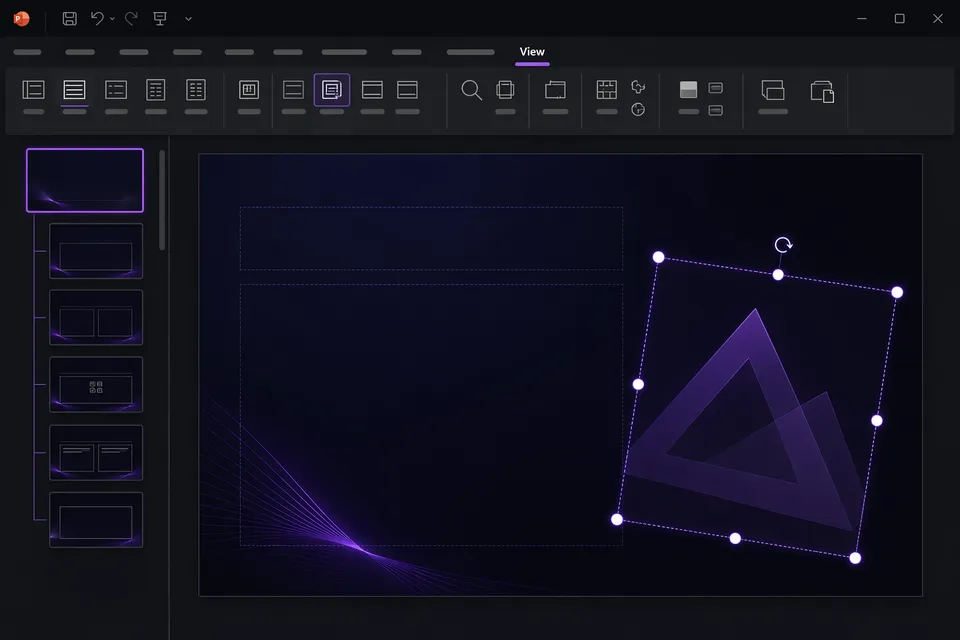
.pptxexport in PowerPoint. - Go to the View tab and click Slide Master.
- In the left panel you'll see the master slide at the top plus its layouts below. Scroll through them and look for the Made with Gamma badge — check the top master first, then each layout that your slides use.
- Click the badge and press Delete. If your deck uses several layouts, the badge may appear on more than one — delete every copy you find.
- Click Close Master View on the ribbon.
- Scroll through your slides to confirm the badge is gone, then save.
Where this method gets fiddly
- Multiple layouts. Gamma decks often use several layouts, and the badge can sit on each one. Miss a layout and slides based on it keep the watermark.
- PowerPoint for the web hides the slide master editor entirely — you need the desktop app. If you only have the browser version, use a direct removal tool instead.
- No PowerPoint at all? The method obviously requires the software; LibreOffice Impress has an equivalent (View, then Master Slide) but its rendering of Gamma themes is rougher.
- PDF exports can't be fixed this way. The slide master only exists in PPTX. For a PDF, see the PDF removal guide.
The one-click alternative
The badge on the master is a shape hyperlinked to gamma.app — a precise, machine-detectable signature. GammaRemover scans the masters and layouts inside the file, removes exactly those gamma-linked shapes, and leaves everything else byte-for-byte untouched:
- Open the PPTX watermark remover.
- Drop in the
.pptx— it's processed locally in your browser, never uploaded. - Download the cleaned file.
It does in seconds what the manual method does in minutes, catches the badge on every layout automatically, and needs no PowerPoint license. Slides, fonts, animations, and speaker notes are untouched because nothing is converted.
PowerPoint method vs. browser removal
| Slide Master method | GammaRemover | |
|---|---|---|
| Requires desktop PowerPoint | Yes | No — any browser |
| Catches badge on all layouts | Only if you check each one | Yes, automatically |
| Works on PDF exports | No | Yes |
| Risk of altering the deck | Low (native editing) | None — only the badge is touched |
| Time | 1–5 minutes | Seconds |
Frequently asked questions
I deleted the badge in Slide Master but it's still on some slides. Those slides use a different layout that still carries its own copy of the badge. Reopen Slide Master and check every layout in the left panel, not just the top master.
Does removing the master badge break anything? No. The badge is an independent shape; deleting it doesn't affect placeholders, themes, or your content.
Can I do this on a phone or tablet? PowerPoint mobile doesn't expose the slide master. Use the browser-based remover on your phone instead.