
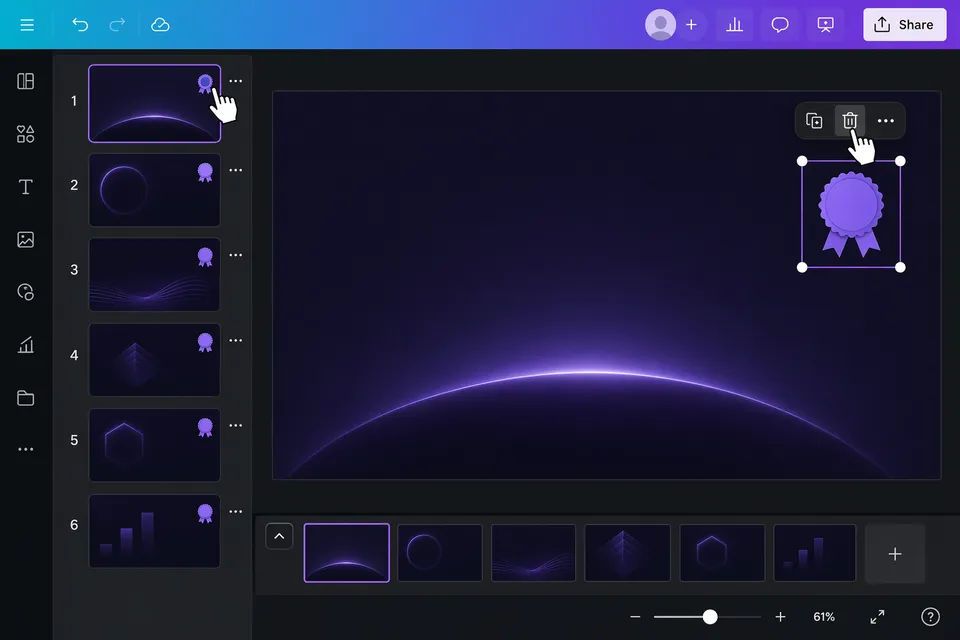
Uploading your Gamma export to Canva and deleting the badge by hand is one of the most searched workarounds for the "Made with Gamma" watermark. It works — but it has real trade-offs that most tutorials skip. This guide covers the exact steps, what Canva silently changes in your deck, and when a dedicated remover is the better call.
The Canva method, step by step
You need a free Canva account and your Gamma deck exported as PowerPoint (in Gamma: Share, then Export, then Export to PowerPoint).
- In Canva, click Create a design and choose Presentation (16:9) to create a blank deck.
- Open Uploads in the left sidebar, click Upload files, and select your Gamma
.pptxexport. - When the import finishes, choose Apply all pages so every slide is added to the design.
- On each slide, click the Made with Gamma badge in the bottom-left corner to select it, then press Delete.
- Repeat for every slide — the badge is a separate element on each imported page.
- Click Share, then Download, and export as PPTX or PDF.
What Canva changes in your deck
The import step is where this method costs you. Canva converts the PowerPoint file into its own format, and the round trip is not lossless:
- Fonts get substituted. If your Gamma theme uses a font Canva doesn't have, every text box silently switches to a fallback, which shifts line breaks and spacing.
- Animations and transitions are dropped. Canva's importer flattens them.
- Layouts can drift. Charts, embedded media, and precisely positioned elements are the usual casualties.
- It's manual. On a 30-slide deck you're clicking and deleting 30 times, and it's easy to miss one.
For a short, simple deck this is usually acceptable. For anything you spent an hour polishing in Gamma, check every slide before you send it.
The 10-second alternative
The watermark in a Gamma PPTX export is a shape linked to gamma.app that lives in the file's slide master. Instead of re-importing the whole deck into another editor, GammaRemover removes that specific shape directly from the file structure — in your browser, in seconds:
- Open the PPTX watermark remover.
- Drop in your
.pptxexport. - Download the cleaned file.
Because nothing is converted, your fonts, animations, transitions, and layouts stay exactly as Gamma exported them. The file never uploads to a server — processing happens locally in your browser.
Canva method vs. direct removal
| Canva method | GammaRemover | |
|---|---|---|
| Time for a 20-slide deck | 10–15 minutes | Under 10 seconds |
| Fonts preserved | Not guaranteed | Yes |
| Animations preserved | No | Yes |
| Account required | Yes (free) | No |
| File uploaded to a server | Yes | No — stays in your browser |
When Canva is still the right tool
If you were planning to redesign the deck in Canva anyway — new branding, different template — then deleting the badge during that edit costs nothing extra. The method only becomes a poor deal when watermark removal is the only reason you're importing.
Frequently asked questions
Does Canva remove the Gamma watermark automatically? No. Canva treats the badge as a normal design element; you have to click and delete it on every slide yourself.
Why can I delete the watermark in Canva but not in PowerPoint's normal view? In the original file the badge sits on the slide master, which normal editing views lock. Canva's importer flattens master elements onto each slide, which makes the badge clickable — that flattening is also why animations and layout fidelity are lost. In PowerPoint itself you can edit the slide master directly.
Is this allowed? Removing branding from your own exported deck for personal or professional use is generally considered fine; see our detailed discussion for the terms-of-service nuances.